


Do you have a need to monitor emails within your organization for certain types of content? This post will walk thru how to accomplish this in Office 365 with a feature called Supervision.
The Supervision feature has been around for awhile in Exchange, but this post will walk thru how to configure it from the Office 365 Security & Compliance Center to allow you to set up policies to monitor emails in your organization. Official documentation is here: Configure supervision policies for your organization.
At the time of this writing, Supervision requires an Office 365 E5 license.
What’s a use-case for this? Imagine your Security and Legal teams wanted to monitor a group’s email to ensure they weren’t communicating with anyone outside of the organization about a pending takeover bid that was happening. Or imagine the Legal team wanted to ensure no insider trading was going on by monitoring emails to/from the trading department. By setting up a Supervision Policy, it would alert reviewers of this activity and appropriate action could be taken.
From the Security & Compliance Center, you will see the Supervision option under Data Governance.

- Click Create to create a new Supervision Policy.
- Name the policy.
- Choose who you want to supervise. You can pick either specific users or an AD Group. You can also exclude specific users from a Group.
- Choose what type of content you want to review: Inbound, Outbound, Internal.
- Enter the word(s) you want to search for in the email. In this example, I’ll search for the word “takeover”.


- You can use many kinds of conditions as shown below. The conditions could allow you to search inside of attachments as well as exclude messages that contained certain words – for instance, anything that had Approved by Contoso Legal as a document footer could be excluded. When setting up the Supervision Policy you would have to spend some time getting to the right combination of conditions.


- Choose what percentage of communications should be reviewed (up to 100%). It will randomly select content based on this number. For this example, I’ve chosen 90%.
- Specify who will review the communications. If you needed the review process to be done at arms-length, you could assign reviewers from a third-party email address. Whether the reviewers are internal or external, they will use the Supervision app in Outlook Web App to review the content. (Outlook client add-in coming soon)
- A mailbox titled Supervision – Review External Communications will be created to show in each reviewers Outlook Web App to review the contents. As you can see by the image below, it places each classified email in one of four buckets: Compliant, Non-Compliant, Questionable, and Resolved.


To test the review process, I sent 2 emails, both to an external email address. The first had the word takeover in the Subject line and the second had the word takeover in the Message text. As you can see below, both of these emails were identified and now appear unclassified in the ‘Review External Communications’ folder:


If the reviewer opened the first email from above, he/she would need to click the Supervisory Review link found at the top of the email body to load the Supervision Outlook Add-in as shown below. This is how the reviewer would classify the email as Compliant, Non-Compliant, Questionable, or Resolved:


Once the email has been classified, the Supervision Add-in will update with the classification and the optional comment. I recommend a comment be added for each email to explain why the classification was chosen and potential next steps.


Once you have resolved the issue with the email, you can update the classification to Resolved. You can see the change history when you select the History tab in the Supervision add-in:


Supervision Report
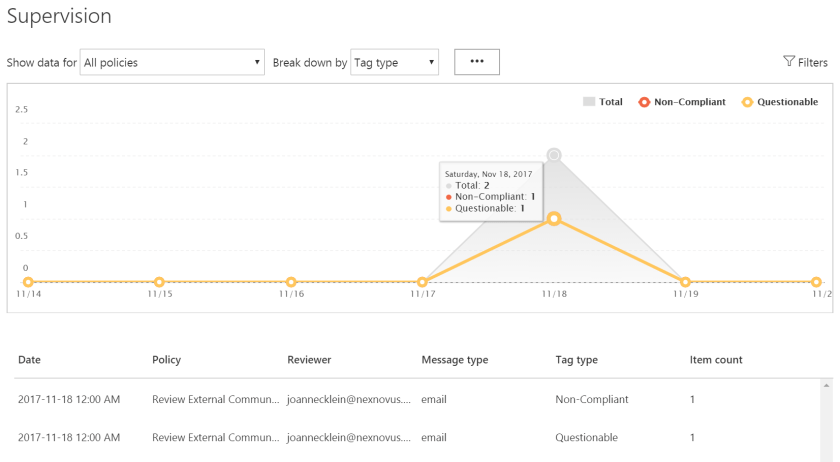
You can view a report of all Supervisions in the Reports… Dashboard section of the Security & Compliance Center. From the report below, you can see 2 emails I’ve classified (1 as non-compliant and another as questionable):

Summary
Supervision policies are an effective tool in Office 365 to allow employers to monitor emails both internal and external to their organization to both protect their corporate assets as well as ensure employees are remaining compliant.
Another tool in the Office 365 Security & Compliance toolkit.
Thanks for reading.
-JCK
Credit: Photo by jeshoots