


If Microsoft Teams and SharePoint sites are being created en masse across your tenant and your end-users are incorporating them into their daily work lives, reality is starting to sink in. As an IT Administrator, you likely have some concerns:

These are all valid concerns, however don’t let this stop progress! 2 key things to keep in mind:
Thing 1… Allowing end-users to create an abundance of Teams for collaboration means content is being stored in Microsoft 365. If you’re throttling the creation of Teams, where are end-users storing their content? You can be sure they’re storing it somewhere and it may not be in Microsoft 365! Conversely, if it’s stored in Microsoft 365, you have an opportunity to control it and ultimately protect it – a good thing.
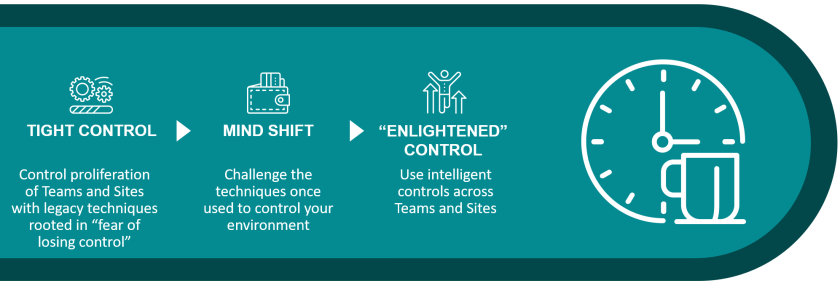
Thing 2… IT teams need to challenge legacy ways of thinking about control. A mind-shift is required to move from “preventing Teams and Sites being created in the first place” to “allowing it, but with intelligent controls”. I believe this is the most secure course of action over the long term. The sooner controls can be understood, configured, and implemented to protect, secure, and retain your content, the more compliant position your organization will be in.
The required mind-shift is a move from “tight control” to “enlightened control”… moving to a secure and compliant Microsoft 365 environment with fit-for-purpose compliance.

The remainder of this post will talk about a sampling of Microsoft 365 controls and configurations you could put in place to help address each concern above. In all cases, it’s a combination of controls addressing the concern to demonstrate the point that no one tool or feature will fix the problem.


Concern: How to prevent proliferation of Teams/Sites
Although the technical limit for the number of sites across any tenant is currently 2 million (as of January 2020), most organizations will still want to control the number of them being provisioned for compliance and support reasons. Here is a sample of features (controls) you could implement to help:
- Automated control: Implement an automated approval process for Teams creation. This will allow for oversight on the team’s name, team’s purpose, type of collaboration site required (Microsoft Teams, SharePoint site without a Group, SharePoint site with a Group), site sensitivity, access policies, and external access. Be careful with this option… you need to ensure the process provides a quick response time while still implementing the controls your organization requires. It’s a fine line we all must walk.
- Automated control: Retire stale teams by implementing a Group Expiration policy. This provides an opportunity for Teams no longer active be removed. If there is still activity in the team, the clock will be reset and the Group will not expire. Since the Team owner gets to decide when this happens, information management teams may want oversight on when they’re being deleted so they can retain any business records. This could be automated by ensuring retention labels and/or policies were published across your Team sites.
- Automated control: On standalone SharePoint sites (not backed by a group), use a classic Site Policy feature to close/delete a site after an approval process
- Manual control: Periodically review Teams and Sites. There is still a requirement for manual governance on things and as much as you’d like to completely automate all aspects of control, there will always be a need for some level of manual checking. For example, combining 2 Teams serving a similar purpose can only be done thru a manual “check-up” on a periodic basis.
Concern: How to prevent IP from being lost
Our tenants are full of content, however not all content has the same business IP value and therefore shouldn’t be painted with the same broad brush when it comes to security and protection. This is a departure from the legacy way of protecting all corporate digital assets where protection was once done at a broader, container level. A more intelligent, enlightened way to protect content is at a granular, data level. This is due, in large part, to organizations no longer having the luxury of data being contained within their network perimeter – we routinely need to collaborate with external partners, vendors, and customers and therefore need the protection to remain with the data wherever it travels.
Many of the new controls being introduced across Microsoft 365 are reliant on your data classification scheme to take action based on the sensitivity of the data. This is why it’s the critical foundation for protecting your content in an enlightened and intelligent way.
For example, you may not care if someone shares a project document with an external user on a project team, however you likely care a great deal if someone shares a sensitive, highly confidential contract with an external party.
There are numerous features across Microsoft 365 to help prevent the loss of IP. Both security and protection controls play a part in the overall solution. I’m focusing on protection controls below, however know that there are other security features to be aware of that would also help with this concern (Microsoft Cloud App Security, Conditional Access to name a few).
- Automated control: Implement Data Loss Prevention (DLP)
- Use DLP rules to prevent/warn when specific content is being shared externally to your organization. You can stop it from happening, or allow an end-user to override the behavior
- Automated control: Implement Sensitivity labels
- These can be manually or automatically applied to a document or email and can apply rights management (using Azure Rights Management Services) to control who can access it both internally and externally and what actions can be done once it is shared with others (View/Print/Edit etc.)
- For example, consider configuring sensitivity labels to limit external access for Confidential or Highly Confidential labeled content.
- Rolling out now in Public Preview, it can also be applied at a “container” level. This doesn’t mean everything within the container inherits the same sensitivity (this still needs to be applied at a document/email level), but it does drive specific controls at a Team/Site/Group level such as:
- Site Privacy (Private or Public)
- User Membership (Allow/disallow external users)
- Require conditional access for domain-joined devices
- These can be manually or automatically applied to a document or email and can apply rights management (using Azure Rights Management Services) to control who can access it both internally and externally and what actions can be done once it is shared with others (View/Print/Edit etc.)
- Automated control: Implement Azure Information Protection (classic AIP) labels
- Important: If you haven’t implemented these labels yet, you should instead implement Sensitivity labels (above bullet point). If you have implemented these labels, know that even though there isn’t feature parity between Classic AIP and Sensitivity labels as of today (January 2020), and Classic AIP labels can currently do some things Sensitivity labels can’t (although this gap is rapidly closing), all new Microsoft investments will be on Sensitivity labels making them the recommended protection “label” path forward. Note: the classic AIP client will be deprecated on March 31, 2021 so migrate these labels to Sensitivity labels prior to that date
- Automated control: Supervision Policies Although over time this feature will be fully replaced by the next control in this list, Communication Compliance, if you currently have Supervision Policies configured, they will continue to work. These policies monitor user communications (inbound and outbound for Exchange email, Microsoft Teams, and 3rd party communications) for certain types of content. The reviewer will then examine the messages for compliance and do further follow-up as required. Examples of things you can detect and review: harassment, offensive language, and keywords for unauthorized communications. I’ve previously blogged about this feature here: Email Supervision in Office 365
- Automated control: Communication Compliance Announced at Microsoft Ignite 2019, this new feature builds on the capabilities of Supervision Policies with several enhancements: customizable pre-defined templates (anti-harassment, offensive language, sensitive information, regulatory compliance), remediation workflows, and actionable insights. It can monitor communication across Exchange Online email, Microsoft Teams, Skype for Business Online, and 3rd-party sources. Reviewers can investigate the communication and take appropriate remediation actions to make sure they’re compliant with your organization’s standards.
- Automated control: Insider Risk Management (Preview) Also announced at Microsoft Ignite 2019, this feature will identify and mitigate organization-wide internal risks by leveraging Microsoft Graph and 3rd-party signals. For example, it could detect activity from an employee downloading a large number of files in conjunction with a termination action from the internal HR system. This could indicate a leakage of sensitive data. An important aspect of this feature is the employee privacy standards adhered to which allow for anonymized results to be shown to the reviewer. The reviewer can triage and take action on any risky behavior observed.
- Manual control: Monitor protection usage – Using the Reports tab in the Compliance Center, you can gain insights into the sensitivity labels users are applying across your environment. You can see top labels applied, where labels are applied, how much of your content is being protected with Rights Management, etc. You can also see DLP Policy matches, false positives and overrides.
Concern: How to prevent external users from accessing things they shouldn’t
There are numerous ways to do this spanning from blocking external access entirely to allowing it, but in a controlled way. One important thing to remember about your approach is to acknowledge the fact that if you disable external access, it is likely going to happen anyway without your consent. I believe the risk is significantly minimized by implementing reasonable, mitigating controls, allowing external access, and auditing what/who users are sharing content with across your environment.
First and foremost, this assumes you have site permissions set up correctly and your own information workers are storing content in the right place. E.g. Have they accidentally stored a confidential document on a site shared with external users? If the document has a “Confidential” sensitivity label applied to it preventing the external user from gaining access, then your bases are covered, but what happens if you don’t? This is why information worker training is so important when collaborating with external users!
Let’s first define the difference between external access and guest access…
External Access (Federation): this gives access to entire domains or excludes entire domains (For example, contoso.com). In Microsoft Teams, external access users can call, chat, and set up meetings with you.
Guest Access: this gives access to an individual. In Microsoft Teams, guest access users can call, chat, meet, and collaborate on files stored in your SharePoint and OneDrive for Business sites. When you share a file with someone in a SharePoint site, they become a guest user in your tenant. You can also limit external sharing by domain if required. Guest users are added to your organization’s Active Directory.
I’m focusing on guest users. There are several authorization levels for authorizing guest access going from broad (Azure AD level) to targeted (File level):
- Azure Active Directory: Azure Organizational relationships settings
- Microsoft Teams: Authorize guest access in Microsoft Teams
- Office 365 Groups: Office 365 Groups guest settings
- SharePoint Online and OneDrive for Business:
- Organization level: SharePoint organization level sharing settings
- Site level: SharePoint site level sharing settings
- Sensitivity label for a Group/Team/Site: Lots of good work happening on these labels. These labels have the ability to apply a sensitivity label to a Team/Site/Group which can automatically enable/disable guest access, configure unmanaged device access, and set the privacy setting at the Team/Site/Group level. This is important for Confidential and Highly Confidential sites in your organization (think Board sites, HR, Legal, etc.). This once again demonstrates how important your organization’s data classification scheme is.
- Sensitivity label for a File/Email: You can also configure a sensitivity label to have restricted permissions (using Azure Rights Management) to suit your sensitivity requirements. In this example, you could configure a sensitivity label to only allow users in your tenant (or specific security group) to have access, excluding any external user from gaining access. This would override SharePoint permissions:

- Access given at a File level: When a user shares a file/folder to an external user, access is granted to them explicitly for that file/folder. During the share process, an end-user can also choose to block download (good idea for confidential documents).

Because you can configure authorization at all of these levels, it provides a lot of flexibility in setting up guest access across your tenant, however it does require ongoing governance to ensure external access is limited and expired when no longer required.
Tip: Include “How to Share” training to information workers in your organization. Include things like expiring the sharing link, adjusting the view/edit setting, and how to block download. These are all features required at times.
Site Owners can gain insight into what’s being shared with external users across their site from their Site usage page (Report on file and folder sharing in a SharePoint site). This is an important governance task to communicate to all site owners so they can periodically review and adjust if the share is no longer required.
If you’re lucky enough to have an Azure AD Premium P2 license, leverage Azure AD Access Reviews (Link) to set up recurring access reviews of users at set frequencies (weekly, monthly, quarterly or annually). The reviewers will be notified at the start of each review. Reviewers can approve or deny access with a friendly interface and with the help of smart recommendations.
Closing thoughts
How are YOU protecting your Teamwork in Office 365? Are you satisfied with the controls your organization has in place? Are you impeding the collaboration experience for your end-users or have you found a good balance? I’d love to hear from you!
Thanks for reading!
-JCK