

Did you know… an auto-apply retention label policy will never apply retention labels to Folders and Document Sets themselves? You must target the documents contained within them.
Target audience for this post: Purview retention specialists and SharePoint information architects
The intent of this post is to address a source of confusion I’ve observed from working with customers and other consultants when applying retention labels to SharePoint folders and document sets.
I’ve had numerous people reach out to me over the past year about this exact functionality. Knowing how this works becomes very important when designing a SharePoint information architecture to support Purview retention.
Check out another post about retention and folders by my friend, Martin Lingstuyl, where he discusses important implications of applying Purview retention labels to folders. A must read.
The Value of a Default Retention Label
Setting a default retention label on a folder, document set, or even a library in SharePoint is a great way to ensure all documents contained within will automatically inherit the label. This eliminates the need for a business user to apply the label manually. Sometimes this simple retention model is sufficient and appropriate.
Note: a document set is also a type of folder (its parent is Document Collection Folder) and the same behaviour applies to both when it comes to retention. I provide examples of both for clarity.
The most straightforward method to apply a retention label to a folder in a document library is to first publish the label to the site (with a publish label policy) and then manually (or programmatically) apply it to a folder. In this method, you visibly see that the retention label is applied both to the folder itself (and subfolders if they exist) as well as all the unlabeled documents within the folder (and content within subfolders if they exist). You must add the retention label to a SharePoint library view to see it.

 In contrast, when you default a retention label at the library level (in library settings), the retention label is only applied (and visible) to individual files within the library:
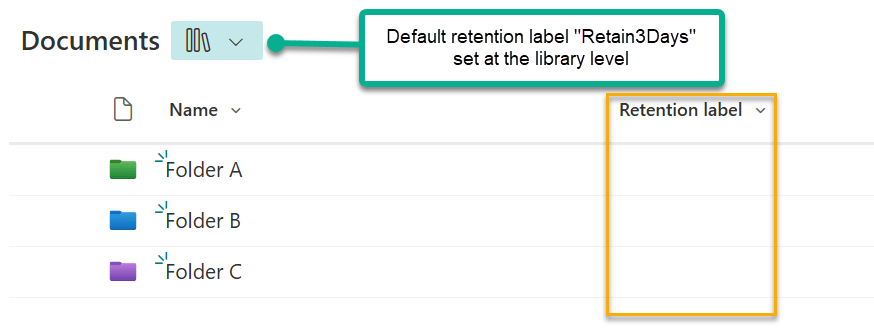
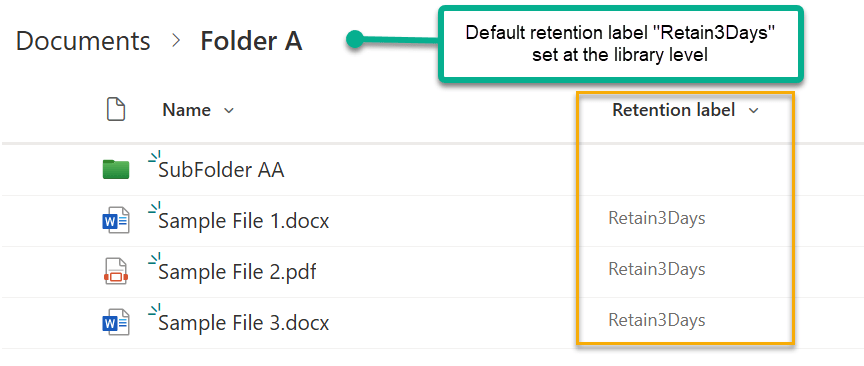
Even with a default library retention label, you can apply a different default retention label at a granular folder level like described above which will overwrite the library default for content within the folder (some exceptions around record labels and manually applied labels).
Although manually setting a default label like this is sufficient in some cases, sometimes you may need to control when the label is applied in a more automated manner.
Auto-applying a Default Retention Label
This is where some confusion starts…
The confusion comes in when ASSUMING you can also use an auto-apply retention label policy with a matching keyword query language (KeyQL) query targeting the folder/document set to apply a default label on a folder/document set.
This is not possible.
The reason why… An auto-apply retention label policy only looks for property matches on documents and items for the condition you provide in the KeyQL. It does not look for property matches on folders. This is true even if you have a condition in the auto-apply policy that matches on a folder. Think of it as the auto-apply label policy always adding an invisible condition that says “only include documents and items that match the KeyQL query condition provided…”.
Official Microsoft link for queryable properties for SharePoint/OneDrive: Keyword queries / search conditions
Even with this guidance from Microsoft, I still get a lot of questions. Here are a few examples to demonstrate…
A Folder example
A SharePoint site has a number of folders in a library. You’ve standardized a naming structure so one of the folders is named Approved. It is your desire to apply a retention label to any folder named Approved so all documents within will inherit the label. By testing in the SharePoint search box, this is the KeyQL query you determine will find a match on the Approved folder so you decide to use it as the auto-apply label policy condition:
ContentType:Folder AND Title=”Approved”
The result… no retention label will be applied to the folder nor to any documents within the folder.
The reason why… even though the KeyQL query found the Approved folders when you tested the query in the SharePoint search box, the auto-apply label policy only looks for property matches on documents and items. There are no documents or items that have a content type of Folder as your KeyQL is requiring.
Remember, the auto-apply label policy adds an invisible condition that says “include only documents and items that match the condition provided…”.
Due to this, neither the folder nor any files contained within will be labeled.
Note: even if you have created a custom Folder content type to house your documents, the same behaviour above exists.
A Document set example
A SharePoint site has a custom document set content type called “Contoso Case File” in a library. There is a metadata column on the document set called CaseStatus that you have shared with the documents that will be added to the document set (a simple document set configuration). Example setup shown here:
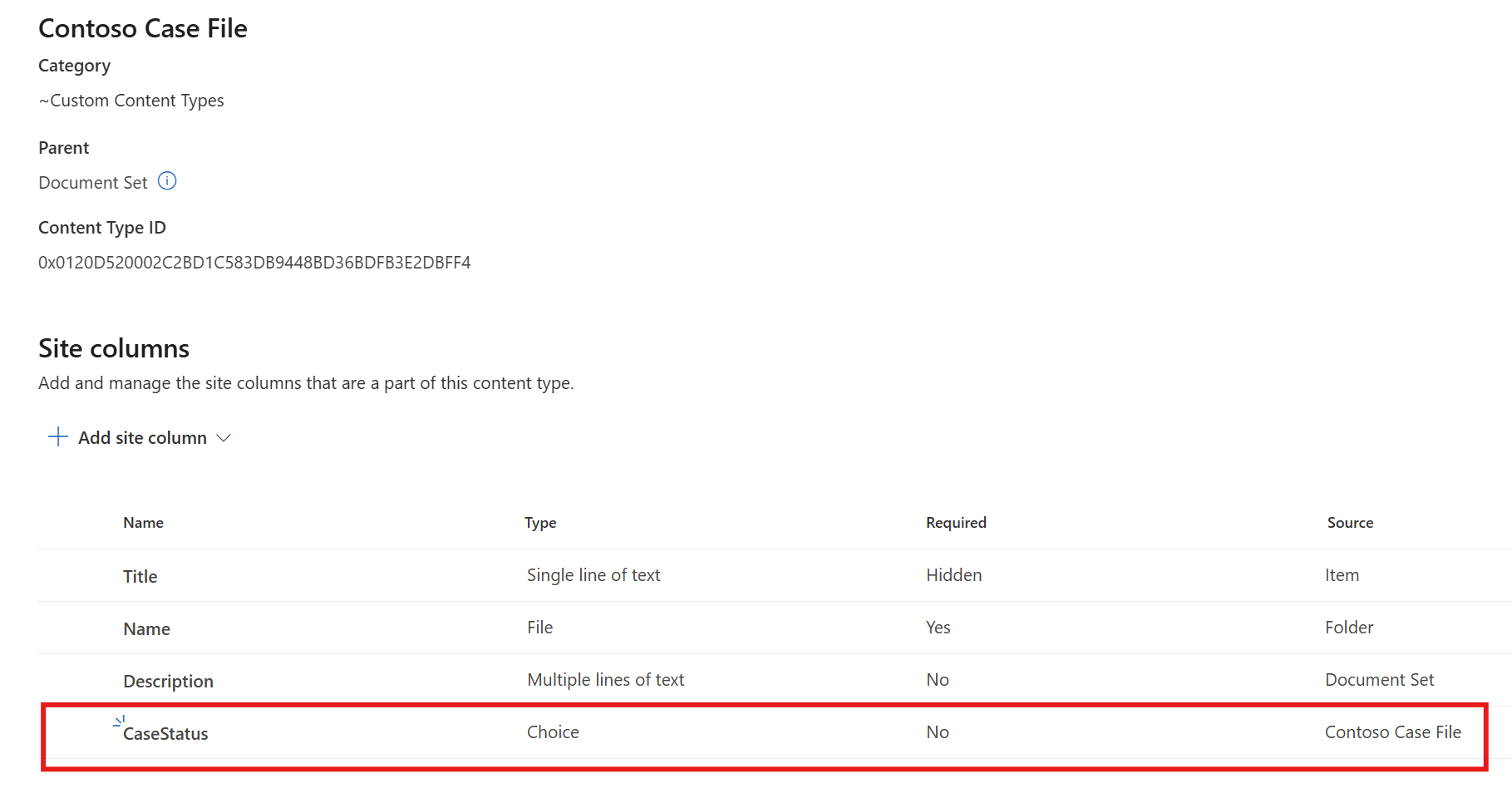
It is your desire to apply a retention label to all Contoso Case File content types with a CaseStatus value of Complete so all documents within will inherit the label. This is the KeyQL query you determine will find a match on the document set and status by testing it in the SharePoint search box: (you must map the crawled property for CaseStatus to one of the pre-built managed properties first). You use this query as the condition in the auto-apply label policy:
ContentType:”Contoso Case File” AND RefinableString##=”Complete”
The result… no label will be applied to the document set nor to any documents contained within the document set.
The reason why… even though the KeyQL query found all the document set content types with a status of Complete when you tested the query in the SharePoint search box, the auto-apply label policy is only looking for matches for documents and items. The documents contained within do not have a content type of “Contoso Case File” as your KeyQL is requiring so the policy won’t find any matches.
Remember, the auto-apply label policy adds an invisible condition that says “include only documents and items that match the condition provided…”.
Due to this, neither the document set nor any files contained within will be labeled.
Alternatives
Are there other KeyQL alternatives for automatically labeling files within a specific folder or document set? Yes.
Shared Columns
Because the CaseStatus column is shared with all documents within the document set, you could use it as a condition in an auto-apply label policy if that alone is a sufficient query (could add other metadata properties as well). In this example, contenttype:document is not required because the auto-apply policy is only looking for documents:
RefinableString##=”Complete”
The result… this would successfully apply the retention label to all documents with a CaseStatus of “Complete”. In fact, it would apply the retention label to any document with that property value whether it was in the document set or not. This may or may not be what you want so make sure the property/properties you are using are specific enough for your use-case.
Note: It would not apply the label to the document set itself because it’s not a document.
The reason why… because the CaseStatus column has been shared to all documents within the document set and you’ve made it a queryable property by mapping it to RefinableString##, the auto-apply label policy will find the property on these documents.
Remember, the auto-apply label policy adds an invisible condition that says “include only documents and items that match the condition provided…”.
Due to this, it will find all documents with this property value and will apply the label.
This is why I LOVE document sets and shared columns. The metadata only needs to be changed once at the document set level, and all documents within automatically inherit the metadata value allowing them to be targeted for Purview retention. I will die on this hill. 🙂
There are some dependencies for editing document set metadata and the sharing of columns if the default label already applied is a record label. Refer to the tenant level setting to “Allow editing of record properties” to allow it.
The DocumentLink property
Since DocumentLink is an out-of-the-box queryable managed property found on all documents, it can be used as in a KeyQL query condition to apply a retention label on a library, folder or document set’s content. To do this, below is a sample KeyQL query to apply a retention label to a folder’s documents and items with a wildcarded documentlink:
documentlink:"https://contosodomain.sharepoint.com/sites/somelibrary/foldername/*"
The result… all unlabeled documents within that folder would have the label applied. The folder itself would not have the label applied.
The reason why… because DocumentLink is a property found on all documents, the auto-apply label policy will find these documents. Remember, the auto-apply label policy adds an invisible condition that says “only look for documents and items that match the condition provided…”. Due to this, it will find all documents with this DocumentLink property value and will apply the label.
Caution! Although you can use the DocumentLink property I describe above to reference a specific folder in a library and this would certainly apply the label to all files within that named folder, this is not a scalable solution I would recommend if you plan to use this for many folders across SharePoint. With this approach, you would have to individually include all DocumentLink paths into the auto-apply label policy as a condition which would be an administrative nightmare (and there are limits).
The ParentLink Property
Since ParentLink is an out-of-the-box queryable managed property found on all documents, it can also be used as a condition to apply labels on a parent folder’s content. This is a more scalable solution than using DocumentLink since you don’t have to specify the entire folder path; you only need to specify the parent folder name you want to target in the KeyQL query:
parentlink:"Approved"
The result… all unlabeled documents within any folder named “Approved” would have the label applied. The folder itself would not have the label applied.
The reason why… because ParentLink is a property found on all documents, the auto-apply label policy will find these documents. Remember, the auto-apply label policy adds an invisible condition that says “only look for documents and items that match the condition provided…”. Due to this, it will find all documents with this ParentLink property value and will apply the label.
Caution! Use the ParentLink property with caution as there may be many folders with that name across your scoped locations and a label would be applied to the content within each of them. This may or may not be want you want.
My 3 Key Takeaways
- KeyQL queries in an auto-apply label policy must use (queryable managed) properties that exist on documents and items.
- Auto-apply label policies will never apply retention labels to Folders and Document Sets themselves. It will only apply to documents and items that have matching document properties.
- This highlights the importance of sometimes having to assign custom document metadata in SharePoint for Purview to effectively auto-apply retention labels even when content is organized by folders or document sets. There are many ways of doing this – document sets are one way.
Did you know… even if a folder/document set has a retention label applied that is configured with a disposition review at the end of the retention period, only the labeled documents within the folder/document set will go thru the disposition review process? The folder/document set is not subject to any retention/disposition controls and in fact will remain even if it is empty and all content within has been permanently deleted. Perhaps a topic for another post. 🙂
Thanks for reading.
-JCK
So how then should we handle disposition of Folders and Documents Sets? The whole point of using Purview was to automate this task so it is more efficient. It doesn’t seem to make sense to have to return and dispose of folders and document sets manually.
That unfortunately is a separate process that needs to be manually (or thru script) addressed. I would say Records Managers are more concerned with the fact that a “group” or “set” of related records can’t be reviewed and disposed of together such as in a case file. There is no built-in mechanism to accomplish this other than filtering out individual files by URL to find those that share the same parent folder/document set. The cleanup of the empty folders and document sets from SharePoint, although a bothersome maintenance task, usually wouldn’t make you non-compliant. As my friend stated when referring to this issue… “Purview is not the cleanup crew, but the compliance crew, and there’s a huge difference.”.
There are some customers that have written custom scripts that periodically scan and delete empty “containers” (folders, docsets, libraries) if it’s a showstopper.
Not sure that answer gave you any solace, but that’s how it works. 🙂